Why Your Computer Has Amnesia: The Secret Clipboard Trick Every Beginner Should Know
Have you ever copied something on your computer, copied something else, and then discovered that the first thing had disappeared?
Or perhaps you’ve spent time switching between websites, documents, and emails, copying and pasting one item at a time, wishing there were an easier way.
Good news! There is.
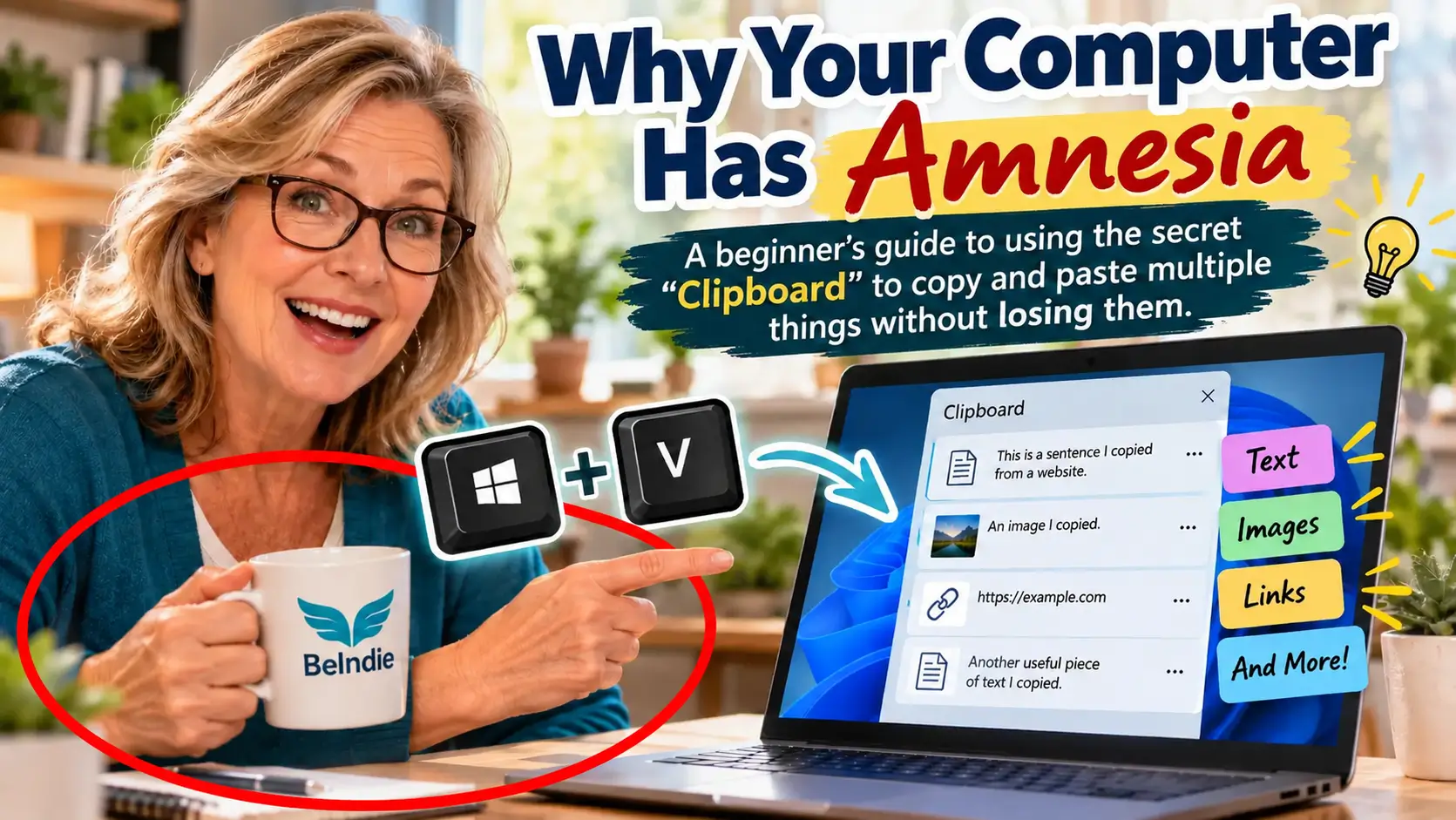
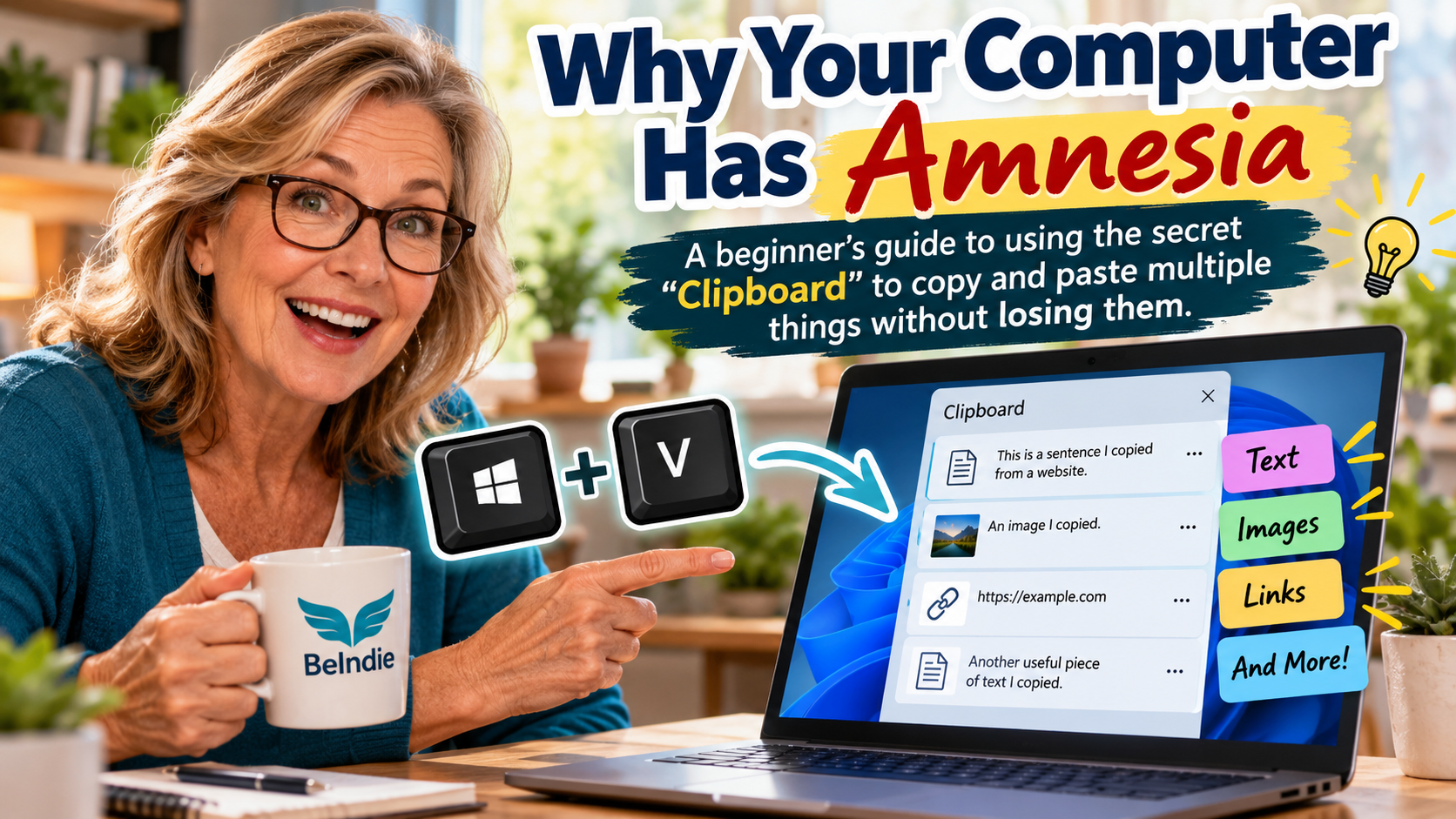
Your computer has a little-known helper called the Clipboard. Think of it as a temporary storage area for things you copy, including text, links, and images.
But here’s the problem: Most people only know how to use the Clipboard one item at a time.
What if you could go back and retrieve something you copied several minutes ago, even after copying something else?
You may be surprised to learn that your computer can do exactly that!
Let’s explore this simple trick that can save you time, reduce frustration, and make everyday computer tasks much easier.
What Exactly Is the Clipboard?
Imagine you’re reading a website and find a sentence you want to save.
You highlight the sentence, press Ctrl + C to copy it, and then press Ctrl + V to paste it into a document.
Simple enough!
But what happens when you copy a different sentence?
On most Windows computers, the new item replaces the previous item on the standard Clipboard.
It’s a little like having a secretary who can remember only the last thing you told them.
That’s why it can feel as though your computer has amnesia!
However, Windows has a feature that lets you look back at multiple items you’ve copied.
It’s called Clipboard History.
Once you discover it, you’ll wonder how you managed without it.
Step 1: Unlock Your Clipboard’s Memory
Here’s the secret keyboard shortcut:
Windows Key + V
The Windows key is the key with the Windows logo, usually located near the bottom-left corner of your keyboard.
Here’s what to do:
- Find a sentence on a website or in a document.
- Highlight the sentence with your mouse.
- Press Ctrl + C to copy it.
- Find another sentence and copy that one, too.
- Now press the Windows key and V together.
A small Clipboard History window should appear.
If you’ve never used this feature before, Windows may ask you to turn on Clipboard History.
Click Turn on.
That’s it! You’ve unlocked a handy computer feature that many beginners never discover.
Note: Clipboard History is available in Windows 10 and Windows 11, although the appearance of the window may vary slightly depending on your version.
Step 2: Copy Several Things Without Losing Them
Let’s try a practical example.
Imagine you’re researching an online business opportunity and want to collect information from several websites.
You find these three items:
Item 1: A website address.
Item 2: A useful sentence explaining a business concept.
Item 3: A price or important statistic.
Normally, you might copy the first item, paste it into a document, return to your browser, copy the second item, paste it, and repeat the process.
With Clipboard History, you can collect multiple items first.
Here’s how:
- Copy the website address using Ctrl + C.
- Find and copy the useful sentence.
- Copy the price or statistic.
- Press Windows key + V.
You should now see your recently copied items in the Clipboard History window, provided they are supported items and haven’t been cleared or removed.
Click the item you want to paste.
Windows inserts the selected item into your current document or text field.
Want to paste another item?
Press Windows key + V again and select the next one.
No more repeatedly jumping between websites and documents just to retrieve something you copied a moment ago!
Step 3: Pin Important Items You Want to Keep
Here’s another useful feature.
Sometimes, you have information you use repeatedly, such as a website address, a standard response, or a short piece of text.
Clipboard History lets you pin supported items so they remain available even after you restart your computer.
To pin an item:
- Press Windows key + V.
- Find the item you want to keep.
- Click the three-dot menu beside it, if available.
- Select Pin.
The pinned item stays in your Clipboard History until you unpin or delete it.
This is particularly useful for information you frequently paste into emails, documents, website forms, or social media posts.
Keep in mind that pinning an item doesn’t make it a permanent document. Clipboard History is still a convenience feature, not a replacement for saving your work in a file.
Step 4: What If Windows Key + V Doesn’t Work?
Don’t worry! Your computer probably isn’t broken.
There are a few possible reasons.
First, you may need to enable Clipboard History.
Press Windows key + V and look for the option to turn it on.
Second, make sure you’re pressing both keys together. Hold down the Windows key, tap V, and then release both keys.
Third, remember that this particular shortcut is designed for Windows computers. If you’re using a Mac, the process is different.
If you’re using Windows and still can’t access Clipboard History, your computer’s settings or organizational policies may affect whether the feature is available.
Step 5: What About Apple Mac Computers?
If you’re using a Mac, you can still copy and paste the usual way.
The standard shortcuts are:
Copy: Command + C
Paste: Command + V
However, macOS does not provide the same built-in, multi-item Clipboard History window as Windows through Command + V or another equivalent standard shortcut.
If you want to retrieve multiple previously copied items on a Mac, you’ll need to explore a clipboard manager or another suitable solution.
The important lesson is that the basic copy-and-paste feature works across computers, but the tools available for managing multiple copied items differ by operating system.
Five Ways Clipboard History Can Make Life Easier
Once you’ve mastered Windows Clipboard History, you’ll find plenty of opportunities to use it.
Here are five examples.
1. Researching Online Business Opportunities
Collect website addresses, useful quotes, product details, and notes while researching different opportunities.
You can then paste the information into a document for easier comparison.
2. Creating Social Media Posts
If you’re preparing content for Facebook, Pinterest, Instagram, or another platform, you can copy several headlines, captions, and website links before assembling your post.
3. Writing Blog Posts
Gather useful notes and short pieces of information as you research a topic.
You can then retrieve the items you need while drafting your article.
Always respect copyright and verify information before publishing it.
4. Filling Out Online Forms
When you’re working with multiple pieces of information, Clipboard History can help you retrieve recently copied text without repeatedly returning to the original source.
Remember that some websites may restrict what you can paste into their forms.
5. Saving Time on Everyday Computer Tasks
Perhaps you need to copy several names, email addresses, website links, or short notes into a document.
Instead of switching back and forth between applications after every copy, you can collect the information and retrieve it from Clipboard History as needed.
Small time savings like these can add up!
An Important Privacy Warning
Clipboard History is useful, but it’s important to understand what you’re storing.
Copied items may contain personal information, financial details, passwords, or other sensitive data.
Avoid copying sensitive information unless necessary, and clear your Clipboard History when appropriate.
To clear Clipboard History on Windows:
- Press Windows key + V.
- Look for the Clear all option.
- Select it to remove the stored items that can be cleared.
Pinned items may need to be unpinned or removed separately.
You can also manage Clipboard History through Windows Settings, where the exact location may vary by version.
And remember: Clipboard History is not a secure password manager. Don’t use it as a permanent storage location for passwords or other confidential information.
Your Two Most Important Keyboard Shortcuts
If you remember only two things from this article, make them these:
Ctrl + C = Copy
Windows Key + V = Open Clipboard History
The first shortcut copies an item.
The second opens your collection of recently copied items on a compatible Windows computer.
Together, these two shortcuts can make many everyday computer tasks faster and easier.
Your Turn: Try the Clipboard Challenge!
Ready to put your new knowledge to work?
Here’s a simple exercise you can complete in less than two minutes.
- Open a website containing a few paragraphs of text.
- Highlight a sentence and press Ctrl + C.
- Find a second sentence and copy it.
- Copy a third sentence.
- Press Windows key + V.
- Click one of the earlier items to paste it into a document or text field.
- Open Clipboard History again and select a different item.
Congratulations!
You’ve just discovered a practical computer skill that can save time and reduce frustration.
The best part? You don’t need expensive software, advanced technical knowledge, or a computer science degree.
You simply need to know where to look.
Final Thoughts: Your Computer Knows More Tricks Than You Think
Many people assume they aren’t good with technology because everyday computer tasks sometimes feel confusing.
But often, the problem isn’t a lack of ability.
It’s simply that nobody has shown them the shortcuts.
Clipboard History is a perfect example. It’s a useful Windows feature that can make copying and pasting much more convenient once you know it exists.
And it’s just one of many small computer skills that can help you work more efficiently, learn new tools, and feel more confident online.
At Be Independent Today, we believe that learning practical skills is an important step toward greater independence.
You don’t have to learn everything at once.
Sometimes, one small discovery is all it takes to make your next computer task a little easier.
Here’s to learning something new today!